
After successfully configuring your S/MIME certificate in Outlook, you can start sending Signed and Encrypted email. While we recommend that you let your mail server administrator handle S/MIME settings, here’s how you can do it yourself:
Outlook Desktop Client:
- Compose a New Email.
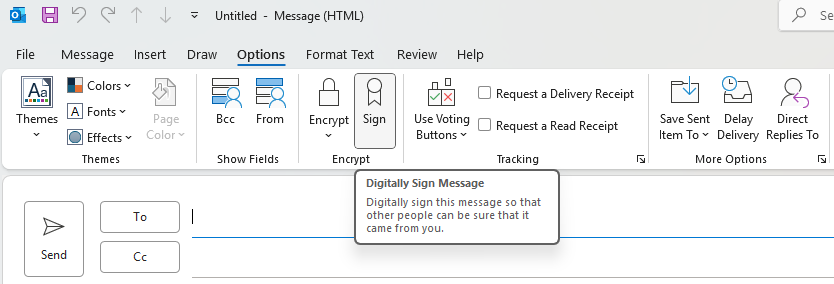
- Navigate to Options at the top.
- Click the Sign button.
- Compose and Send your email.
Outlook Web Browser:
- Create a New Mail.
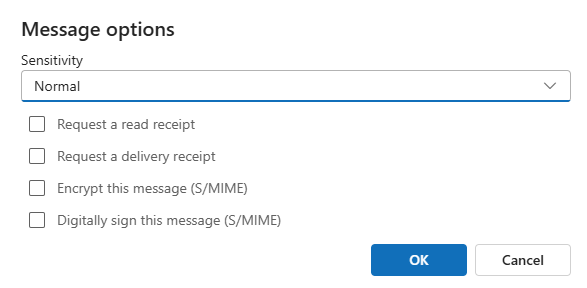
- Click the three-dots menu (…) and choose More Options.
- Select the checkbox for “Digitally sign this message (S/MIME)”.
- Compose and Send your email.
Important Note on Encryption: Before you can send encrypted emails, your intended recipient must have their own S/MIME certificate, and your certificates must recognize each other.
To establish trust, you and your recipient should simply exchange Signed emails. After the certificates have shaken hands, you can both enable encryption for your next emails by clicking the Encrypt button in the mail Options.