
The following instructions will guide you through installing an ACME-enabled SSL certificate on a cPanel hosting account. This process uses ACME.sh, a lightweight ACME client that works well within cPanel’s SSH environment.
Note: Most shared hosting accounts include SSH access, which is required for this installation. If you manage cPanel through Web Host Manager (WHM), you’ll need to enable “Shell access” in the hosting package options.
What You’ll Need
Before you begin, make sure you have the following:
- SSH Access – Access to your cPanel account’s SSH terminal or a third-party SSH client.
- ACME Server URL – The server URL provided by the Certificate Authority (e.g., https://acme.sectigo.com/v2/DV).
- ACME Credentials – Your EAB Key ID (eab-kid) and EAB HMAC Key (eab-hmac-key) from your Certificate Authority.
- Webroot Path – The directory path where your website files are stored (e.g., /home/yoursitename/public_html/).
Step 1: Access the SSH Terminal
The quickest way to access SSH is through cPanel’s built-in terminal:
- Log in to your cPanel account.
- Scroll down to the Advanced
- Click Terminal.
- If prompted, click I Understand to proceed.
Tip: You can also connect using a third-party SSH client. Many web hosts use a non-standard SSH port (not 22), so check your host’s documentation for connection details.
Step 2: Install the ACME.sh Client
ACME.sh is a lightweight ACME client that’s compatible with cPanel’s limited SSH environment. Run this command to install it:
curl https://get.acme.sh | sh
The installation will display output showing where ACME.sh has been installed. Take note of the installation path; you may need it in the next step.
Step 3: Register with the ACME Server
Run the following command to register your account with the ACME server:
~/.acme.sh/acme.sh
--register-account \
--server SERVER \
--eab-kid EAB_KID \
--eab-hmac-key EAB_HMAC_KEY
Replace the placeholders with your own values:
- SERVER – The ACME server URL provided by the CA (e.g., https://acme.sectigo.com/v2/DV).
- EAB_KID – Your External Account Binding Key ID (the shorter string).
- EAB_HMAC_KEY – Your EAB HMAC Key (the longer string).
Note: If you receive a “command not found” error, replace ~/.acme.sh/acme.sh with the full installation path shown during Step 2 (e.g., /home/yoursitename/.acme.sh/acme.sh).
Step 4: Issue and Deploy the SSL Certificate
4.1: Run this command to issue your SSL certificate and prepare it for deployment:
~/.acme.sh/acme.sh --issue \
--webroot /path/to/webroot \
--domain yourdomain.com \
--deploy-hook cpanel_uapi \
--server SERVER \
--eab-kid EAB_KID \
--eab-hmac-key EAB_HMAC_KEY
Replace the placeholder values:
- SERVER – The ACME server URL provided by the CA.
- EAB_KID – Your External Account Binding Key ID.
- EAB_HMAC_KEY – Your EAB HMAC Key.
- com – Your fully qualified domain name (e.g., mydomain.com). To secure both the www and non-www versions of your domain, include the –domain flag twice:
--domain mydomain.com --domain www.mydomain.com
- /path/to/webroot – The directory path where your website’s homepage is stored (e.g., /home/yoursitename/public_html/). You can determine this path by using the cPanel File Manager to navigate to the folder where your homepage is located.
4.2: Once the command completes successfully, the SSL certificate will be issued and stored on your server. Next, run the following command to import the certificate into cPanel:
~/.acme.sh/acme.sh --deploy \
--domain yourdomain.com \
--deploy-hook cpanel_uapi
Step 5: Verify the Installation
Your SSL certificate should now be visible in cPanel. To confirm:
- Navigate to SSL/TLS > Certificates to view the installed certificate.
- Navigate to SSL/TLS > Manage SSL Sites to verify the certificate is applied to your domain.
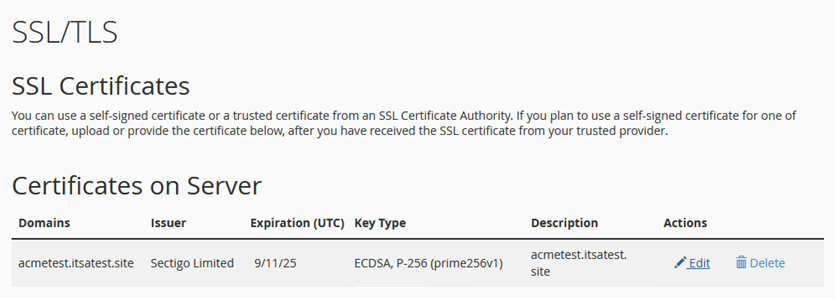
To verify your certificate is working correctly, visit your website using https://yourdomain.com and check for the padlock icon in your browser’s address bar. You can also use our SSL Checker Tool for a more thorough verification.
Automatic Certificate Renewal
ACME.sh automatically renews your certificate approximately 30 days before expiration. To verify that automatic renewal is working correctly, you can force a test renewal with this command:
~/.acme.sh/acme.sh --cron --force
After the command completes successfully, you can verify the certificate has been renewed by checking the Certificate ID has updated under SSL/TLS > Manage SSL Sites in cPanel.
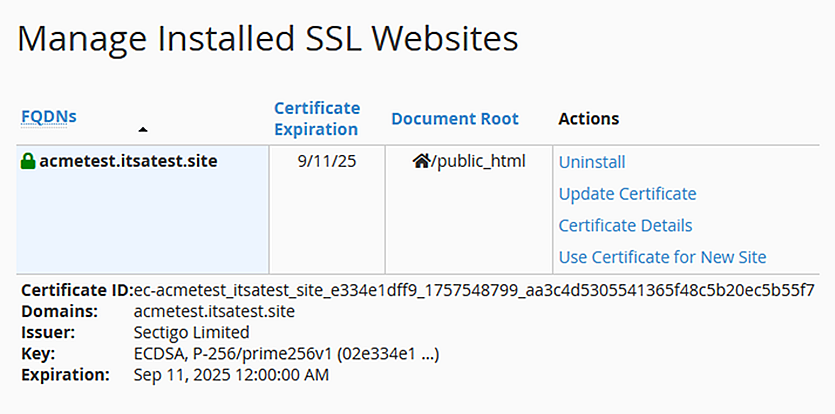
Congratulations! You have successfully installed your ACME SSL certificate on cPanel. Your website is now secured with HTTPS, and automatic renewals are configured.
Additional Resources
If you encounter any issues during the installation process or need further assistance, please contact our support team.