
The following instructions will guide you through installing an ACME-enabled SSL certificate on a Windows IIS Server using the Win-ACME client.
After you complete the initial setup, your SSL certificate should be hands-free: renewals and updates happen automatically without you needing to worry about it.
What You’ll Need
- Administrative access to the Windows Server (typically via Remote Desktop).
- IIS binding configured for your domain on port 80. Sites using only default/wildcard hostnames are not compatible with Win-ACME.
- ACME credentials from your Certificate Authority: Server URL, EAB KID, and EAB HMAC Key.
Step 1: Set Up Win-ACME
- Download the latest version from win-acme.com.
- Extract the zip folder to C:\Program Files\Win-ACME.
- Double-click the wacs file to verify it runs correctly.
Step 2: Install the SSL Certificate
Open PowerShell and run:
& "C:\Program Files\simple-acme\wacs.exe" --source iis --host "yourdomain.com" --certificatestore My --installation iis --acl-fullcontrol "IIS_IUSRS,SYSTEM,Administrators" --eab-key-identifier "EAB_KID" --eab-key "EAB_HMAC_KEY" --eab-algorithm HS256 --baseuri "SERVER" --account "sslsub-<Subscription-ID>" --accepttos
Replace the placeholders:
- SERVER – ACME server URL (e.g., https://acme.sectigo.com/v2/DV).
- EAB_KID – External Account Binding Key ID from your CA.
- EAB_HMAC_KEY – External Account Binding HMAC key from your CA.
- com – Your domain. For www and non-www, use: –host “mydomain.com,www.mydomain.com”
- Subscription-ID – The Subscription ID can be found on your order page.
Tip: Add –verbose to the command for detailed error information if needed.
Step 3: Verify the Installation
Visit your website using https:// to confirm the SSL certificate is active or use our SSL Checker Tool for a more thorough verification.
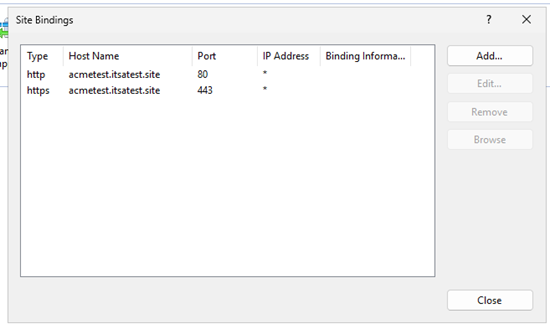
You can also verify the HTTPS binding in IIS Manager under Server Manager > Tools > IIS Manager > Sites > [Your Site] > Bindings.
To confirm the scheduled renewal, run:
& "C:\Program Files\Win-ACME\wacs.exe" --list --baseuri https://acme.sectigo.com/v2/DV/

Note: Win-ACME manages certificates separately for each ACME server. You must specify –baseuri to view the correct certificate and renewal information.
Congratulations! Your ACME SSL certificate is installed and configured for automatic renewal.
Additional Resources
If you encounter any issues during the installation process or need further assistance, please contact our support team.