
The following instructions will guide you through installing and automating SSL/TLS certificates on LiteSpeed (OpenLiteSpeed or LiteSpeed Enterprise) using the acme.sh client with External Account Binding (EAB).
After you complete the initial setup, your SSL certificate should be hands-free: renewals and updates happen automatically without you needing to worry about it.
What You’ll Need
Before you begin, make sure you have the following:
- LiteSpeed Web Server – Installed and running (a fresh install is fine).
- Shell Access – With sudo or root privileges.
- DNS A/AAAA Record – Pointing to your server’s IP address.
- Outbound Internet Access – To your ACME server URL (e.g., https://acme.sectigo.com/v2/DV).
- ACME Credentials – Your EAB Key ID (EAB_KID) and EAB HMAC Key (EAB_HMAC_KEY) from your Certificate Authority.
- HTTP Listener on Port 80 – Required for ACME validation. Verify in WebAdmin → Listeners that Port 80 is set to ANY. If not configured, see the Appendix for setup instructions.
Step 1: Install acme.sh
The acme.sh script handles ACME SSL certificate issuance, installation, and automatic renewal. Run the following command to install it:
1a. Install acme.sh
curl https://get.acme.sh | sh
1b. Load Environment and Verify
source ~/.bashrc
acme.sh --version
Tip: If the installation fails, confirm that curl and git are installed on your system. If acme.sh was partially installed, rerun the command with –force.
Step 2: Register Your ACME Account
Register your ACME client using your EAB credentials to link it with your SSL provider. Run the following command:
acme.sh --register-account \
--server SERVER \
--eab-kid EAB_KID \
--eab-hmac-key EAB_HMAC_KEY \
--accountemail you@example.com
Replace these placeholders with your own values:
- SERVER – The ACME server URL provided by your Certificate Authority.
- EAB_KID – The External Account Binding Key ID provided by your CA.
- EAB_HMAC_KEY – The EAB HMAC Key provided by your CA.
- you@example.com – Your email address for account registration and notifications.
Note: If an account already exists for these EAB credentials, acme.sh will automatically reuse it.
Tip: If registration fails, double-check your EAB credentials and ensure outbound port 443 is open on your server.
Step 3: Issue the Certificate (Webroot Mode)
Run this command to issue your SSL certificate using the webroot validation method:
acme.sh --issue \
-d yourdomain.com \
-w /path/to/webroot \
--server SERVER
Tip: To secure both www and non-www versions of your domain, add -d www.yourdomain.com to the command.
Replace these placeholders with your own values:
- com – Your actual domain name.
- /path/to/webroot – The document root path of your website (e.g., /usr/local/lsws/Example/html).
- SERVER – The ACME server URL provided by your CA (e.g., https://acme.sectigo.com/v2/DV).
Tip: If you see an “unauthorized” or “not delegated” error, confirm that you are using the correct ACME server URL and EAB credentials.
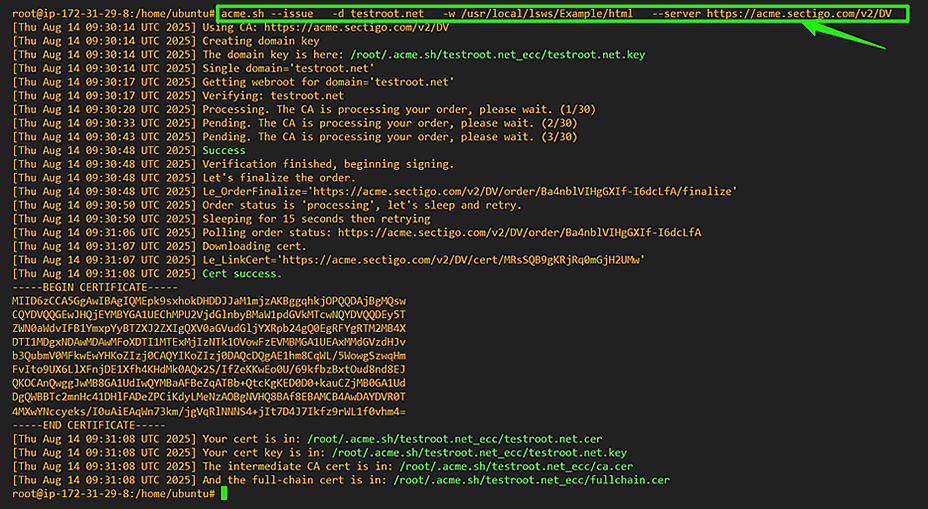
Image: Terminal showing successful issuance of an ACME SSL certificate for the domain.
Step 4: Install the SSL Certificate
Now you need to install the issued certificate and key files into LiteSpeed and configure it to reload automatically after each renewal.
4a. Create Certificate Directory
mkdir -p /usr/local/lsws/conf/cert/yourdomain.com
4b. Install Certificate and Configure Reload
acme.sh --install-cert -d yourdomain.com \
--key-file /usr/local/lsws/conf/cert/yourdomain.com/yourdomain.com.key \
--fullchain-file /usr/local/lsws/conf/cert/yourdomain.com/yourdomain.com.crt \
--reloadcmd "/usr/local/lsws/bin/lswsctrl reload"
Replace yourdomain.com with your actual domain name. The –reloadcmd parameter ensures LiteSpeed will reload automatically after each certificate renewal.

Image: File browser showing the key and certificate files under LiteSpeed’s certificate directory: /usr/local/lsws/conf/cert/yourdomain.com/
Tips:
- If LiteSpeed doesn’t reload with the new certificate, confirm the –reloadcmd path is correct.
- Check file ownership and permissions under /usr/local/lsws/conf/cert/.
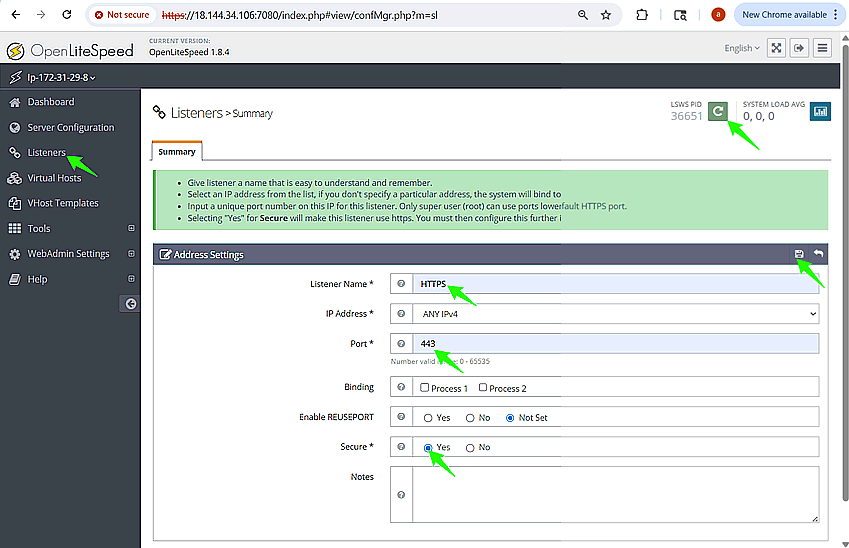
4c. Add HTTPS Listener on Port 443
If you haven’t already configured an HTTPS listener, create one now. You should do this after the certificate files are in place.
- Go to WebAdmin → Listeners → Add
- Configure the following settings:
- Name: HTTPS
- IP Address: ANY
- Port: 443
- Secure: Yes
- Under the SSL tab, configure the certificate paths:
- Private Key File: /usr/local/lsws/conf/cert/yourdomain.com/yourdomain.com.key
- Certificate File: /usr/local/lsws/conf/cert/yourdomain.com/yourdomain.com.crt
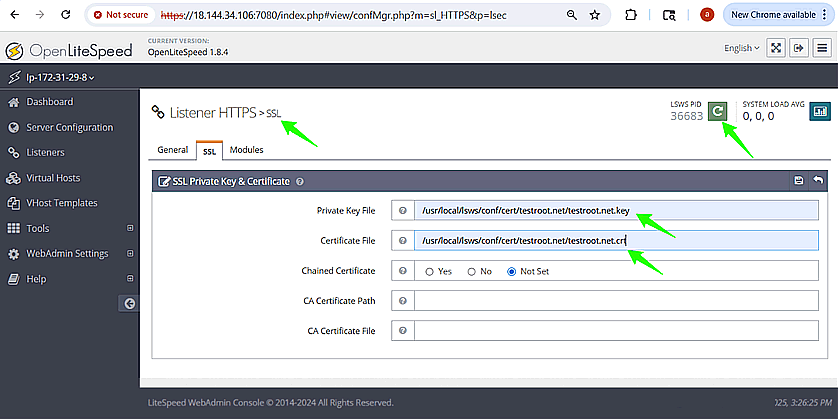
Image: LiteSpeed WebAdmin HTTPS listener configuration with private key and certificate file paths set.
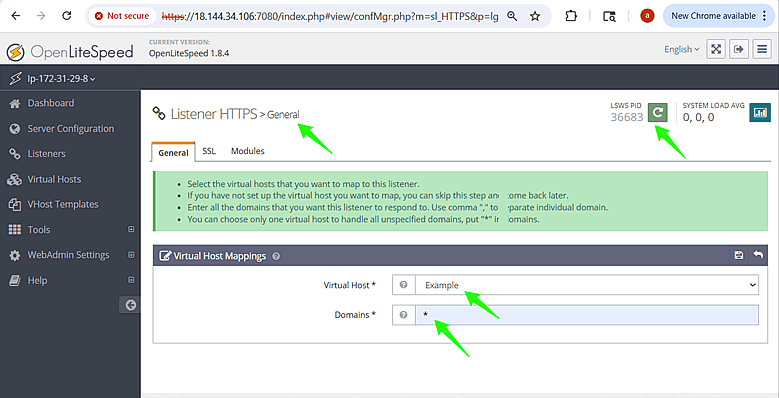
- Map your virtual host (e.g., Example) to domain *.
- Save your changes and Restart
Troubleshooting:
- If WebAdmin rejects the HTTPS listener, confirm that the certificate and key file paths are correct.
- Restart LiteSpeed and check the logs at /usr/local/lsws/logs/error.log for additional details.
Step 5: Verify Installation and Auto-Renewal
ACME.sh will automatically renew your SSL certificate approximately 30 days before it expires. It’s a good idea to test the auto-renewal process now to ensure your server is correctly configured.
5a. Verify the SSL Installation
Visit https://yourdomain.com in your browser and confirm:
- The site loads over HTTPS
- The certificate is valid and matches your domain
To check your server’s configurations more thoroughly, use our SSL Checker Tool.
5b. Check Cron Setup
Verify that the automatic renewal cron job was created:
crontab -l
You should see an entry similar to:
24 13 * * * "/root/.acme.sh"/acme.sh --cron --home "/root/.acme.sh" > /dev/null
5c. Test Renewal Manually
Force a renewal test to confirm everything is working:
acme.sh --renew -d yourdomain.com --force
Replace yourdomain.com with your actual domain name.
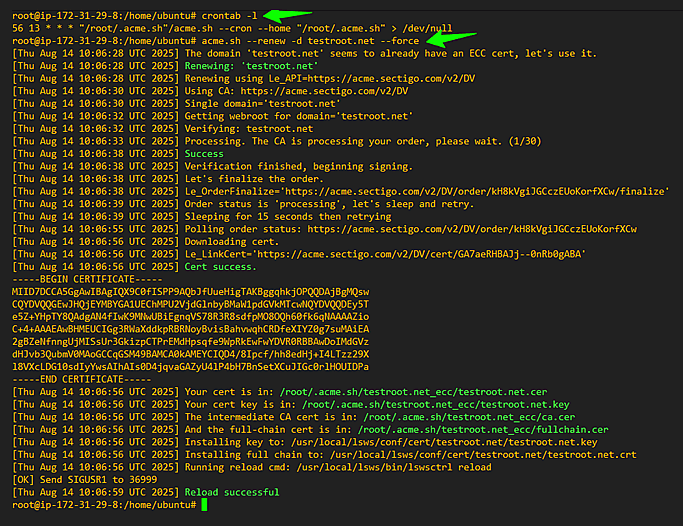
Image: Terminal showing crontab -l with the acme.sh cron entry configured for automatic renewal.
Note: If you see a long “retry-after” message during validation, wait and rerun later. Also reconfirm that the HTTP listener on port 80 is properly configured.
Troubleshooting:
- If your SSL monitor shows an expired certificate, confirm that the cron job ran and that LiteSpeed reloaded.
- If changes don’t appear, try clearing your CDN cache.
Congratulations! You have successfully installed your ACME SSL certificate on LiteSpeed. Your certificates will now renew automatically with no manual intervention required.
Appendix: HTTP Listener and ACME Path Verification
The following steps are not required for most installations but are helpful if you encounter issues or need to configure prerequisites.
Configure the HTTP Listener (Port 80)
This step prepares your LiteSpeed server for SSL certificate automation by enabling it to properly respond to ACME HTTP-01 validation requests on port 80, which is required for certificate issuance.
- Sign in to LiteSpeed WebAdmin: https://<SERVER-IP>:7080
- Go to Listeners → Default (this exists on fresh installs).
- Set the following:
- Port: 80
- IP: ANY
- Save and Restart
- On fresh installs, the Example virtual host is already mapped to this listener by default, with a wildcard domain (*) to handle all incoming requests.
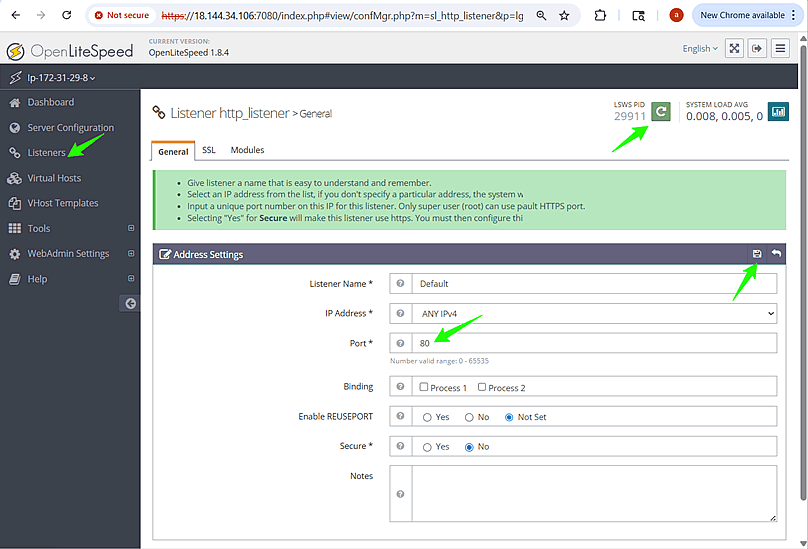
Image: LiteSpeed WebAdmin showing the Default Listener configured on Port 80 with IP set to ANY, ready for ACME SSL validation.
Note: You do not need to bind a specific domain for HTTP validation. Using the wildcard (*) in the virtual host is sufficient for ACME validation, as it allows all subdomains to pass HTTP-01 challenges automatically.
Tip: If port 80 is blocked or conflicting with another service, run sudo lsof -i :80 to find the process using it, stop that process, and restart LiteSpeed.
Verify ACME Path is Reachable (Optional)
Before requesting your SSL certificate, you can confirm that the ACME challenge directory (/.well-known/acme-challenge/) is accessible via HTTP from your webroot. This helps prevent validation failures during issuance.
- Confirm your OS/distro:
cat /etc/lsb-release
This helps you confirm your environment (Ubuntu/Debian/CentOS, etc.) before working with the LiteSpeed webroot.
- Create the ACME challenge directory and test file:
cd /usr/local/lsws/Example/html
mkdir -p /usr/local/lsws/Example/html/.well-known/acme-challenge
echo "Welcome test" > /usr/local/lsws/Example/html/.well-known/acme-challenge/testfile
- Verify with curl:
curl http://yourdomain.com/.well-known/acme-challenge/testfile
Replace yourdomain.com with your actual domain name.

Image: Verifying ACME HTTP challenge directory setup on LiteSpeed by creating and accessing a test file.
If you have a forced HTTP→HTTPS redirect configured, add an exception so that ACME challenge files remain accessible over HTTP. Your .htaccess file should look like this:
# cat /usr/local/lsws/Example/html/.htaccess
RewriteEngine On
# If HTTPS is not already on, redirect to HTTPS
RewriteCond %{HTTPS} !=on
RewriteRule ^ https://%{HTTP_HOST}%{REQUEST_URI} [L,R=301]
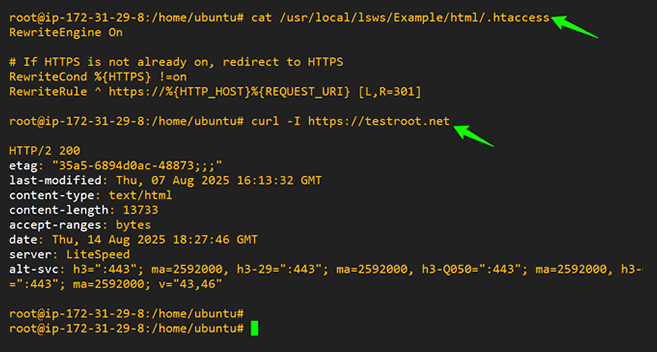
Image: Verifying ACME HTTP-01 challenge directory accessibility on LiteSpeed by creating and successfully retrieving a test file over HTTP.
Note: Ensure port 80 is open in your OS firewall and any cloud security group, WAF, or CDN in front of the server.
Troubleshooting:
- If the curl test fails, check file permissions under .well-known/acme-challenge/.
- Ensure no HTTPS redirect is applied for the ACME path.
Quick Fixes
- 404 on challenge file – Re-check path and permissions; ensure .htaccess exception exists; confirm listener is on port 80 and security groups/firewalls allow port 80.
- Unauthorized / Not Delegated – Ensure you used the correct ACME server URL and the correct EAB credentials for your subscription.
- /usr/local/lsws/Example/html does not contain DNS – This is an informational message from acme.sh when using webroot mode; it is safe to ignore.
- Port 80 blocked / conflicting – Verify nothing else is bound to port 80 using sudo lsof -i :80; fix and restart LiteSpeed.
- Standalone mode conflicts – Avoid using –standalone when LiteSpeed is running; use –webroot mode instead.
Summary
You have successfully:
- Registered your ACME account with EAB credentials
- Issued and installed an SSL certificate
- Configured LiteSpeed to reload automatically after renewal
Your SSL certificates will now renew automatically with no manual intervention.
Additional Resources
If you encounter any issues during the installation process or need further assistance, please contact our Customer Experience Department for support.