
Before you can get an SSL certificate, you must prove that you own the domain(s) listed in your certificate request. Proving domain ownership is usually called Domain Validation, or domain control verification (DCV). For standard, fully qualified domain names (FQDNs) you can use any of these three validation methods:
- Email-based domain approval: have an email sent to a pre-approved alias address on your domain with a link to confirm ownership
- The pre-approved aliases include admin, administrator, hostmaster, postmaster, or webmaster @yourdomain.tld – you must have at least ONE of these specific email addresses, it cannot be any random address or WHOIS registrant.
- DNS-based domain approval: create a specific DNS CNAME or TXT record using values generated by the Certificate Authority.
- File-based domain approval: upload an authentication file provided by the Certificate Authority to a specific, globally-accessible path on your domain server. Also called HTTPS or HTTP Practical Demonstration.
- IP addresses without fully-qualified domain names MUST use file-based authentication
- Wildcard domain names may NOT be validated by file
The Domain Validation step is usually the quickest and easiest part of getting your SSL certificate issued. However, there are several common issues that can cause issuance delays or even prevent your certificate from being activated.
Validate the correct domain scope (DigiCert SSL)
When you enroll any DigiCert-family SSL certificate (including DigiCert, GeoTrust, Thawte, and RapidSSL brands) you may have the option to adjust the “scope” of validation.
The validation scope changes what part of the domain must be approved before certificate issuance. DigiCert will ONLY check the part of the domain specified by the scope, exactly as listed in your validation instructions.
Note: the domain validation scope does not alter what domain name goes on the certificate.
On TheSSLStore.com, you can only adjust the validation scope using the EMAIL validation method.
Recommended DCV scope settings for DigiCert SSL:
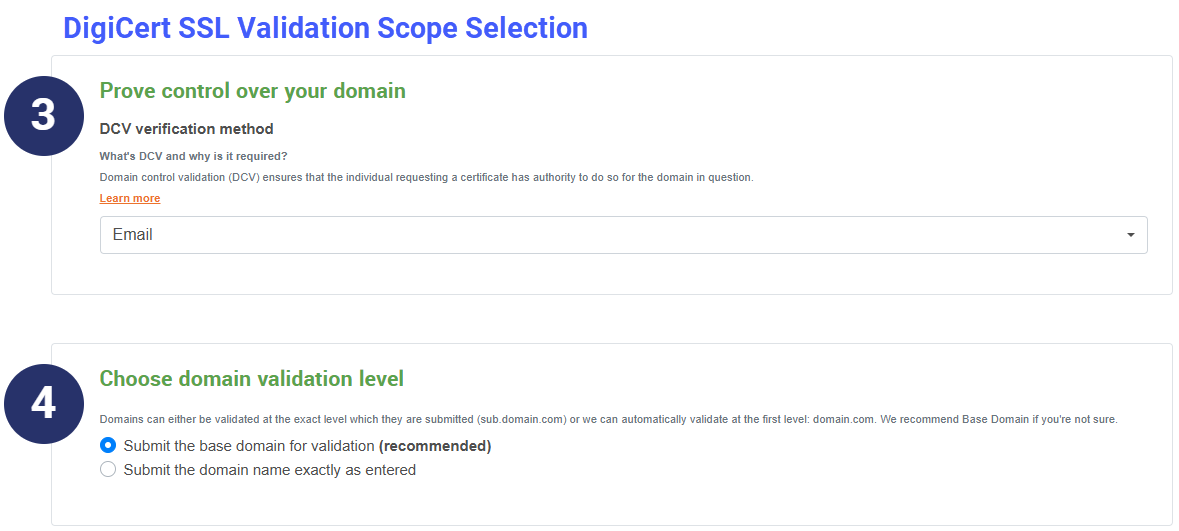
- Submit the base domain for validation (default) = I want to receive email on the base domain, like admin@domain.com
- Submit the domain name exactly as entered = I want to receive email on the exact sub-domain, like admin@sub.domain.com
Note: File-based validation scope can never be changed – it always requires that you upload the authentication file on EACH unique domain name on the request (on both www and non-www, if included).
What is my domain scope?
- For DigiCert SSL email-based validation, if you did NOT change the domain scope during enrollment, then the scope defaulted to BASE domain. The validation email would be sent to all approved aliases on the base domain, e.g. admin@domain.com
- For DigiCert SSL DNS-based validation, you cannot change the domain scope during enrollment. The instructions will be generated for the BASE domain. Check the “hostname” area of your DNS validation instructions, as shown below.
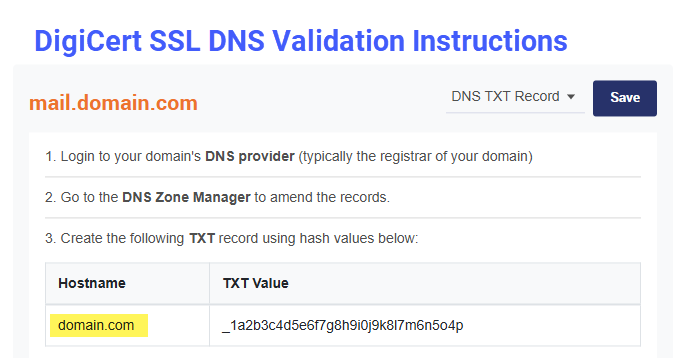
If you cannot complete validation on the HOSTNAME in your instructions, our support team can help change the domain scope.
- For DigiCert SSL file-based validation, you must host the authentication file on the EXACT domain name as listed on the certificate, for EACH domain name. That means if your certificate includes both domain.com AND www.domain.com, the file must be accessible in both locations.
Sectigo domain validation scope
Sectigo SSL (including Sectigo, Comodo, PositiveSSL, EssentialSSL, InstantSSL, and EnterpriseSSL) does not allow domain scope selection during enrollment – EXCEPT when choosing a specific email address for email-based DCV.
- Sectigo DNS-based validation: The domain scope for DNS defaults to the EXACT domain name as entered, but can usually also validate on the base domain using the same random values.
- Sectigo SSL file-based validation: Again, file-based validation ALWAYS requires that you upload the authentication file to EACH individual domain (both www and non-www, if included) on the specified URL(s).
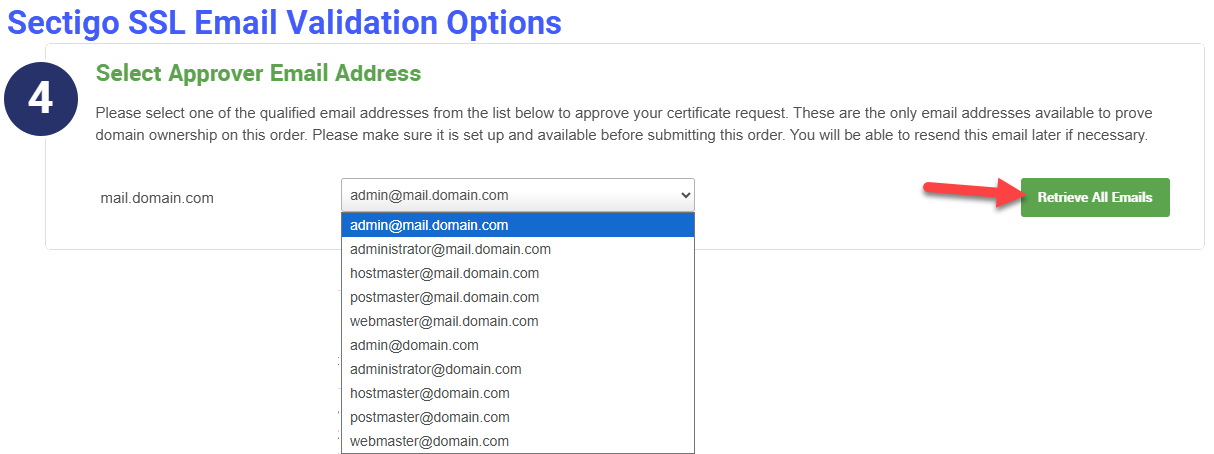
- Sectigo SSL email-based validation: If you’re using email-based validation, you can select a single email address per domain during enrollment.
- By default, the list of emails will only contain addresses using the EXACT domain name as entered. To change from EXACT domain to BASE domain, click the Retrieve All Emails button, then select a new address from the drop-down menu.
Sub-domain includes www
During DigiCert SSL enrollment, right after you upload the CSR, there is a checkbox that adds the www domain (or non-www) based on the common name. If your CSR common name is domain.com, that checkbox puts www.domain.com on the certificate too.
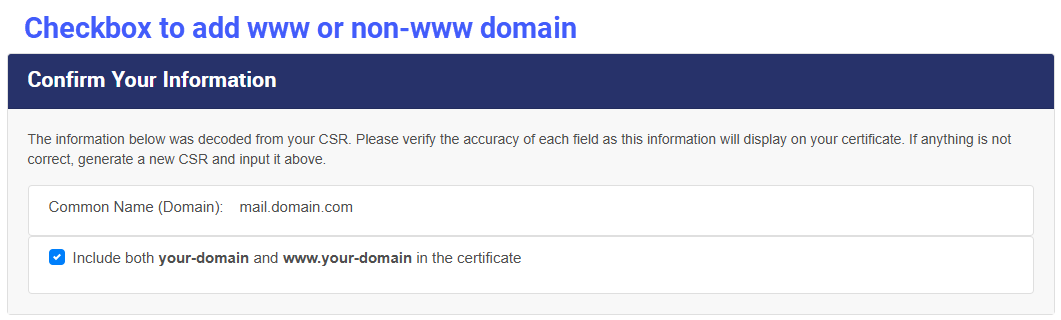
This checkbox can cause a problem if it adds a domain name that doesn’t exist. If the certificate is only for a sub-domain (like mail.domain.com) we recommend that you uncheck this option.
You may have trouble completing file-based validation if your certificate includes a domain that does not exist. Check the list of domains pending validation on your SSL order dashboard:
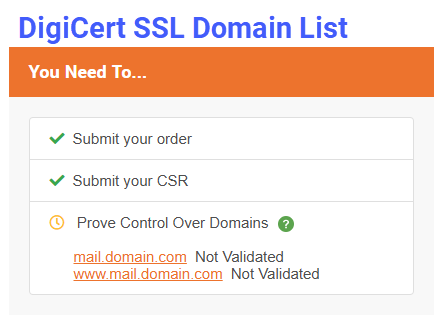
If there is domain listed here that cannot be validated and should be removed from the order, our support team can help.
Note: This issue does not usually occur with Sectigo SSL because it does not automatically add www if the common name is already a sub-domain. For base domains, you will need to complete file-based authentication on both domain.com and www.domain.com.
Check Your Work (DNS and File)
Using the DNS or file-based domain validation methods, you can easily check if the work you did is correct.
- DNS TXT or CNAME: Use a DNS checker like WhatsMyDNS to look-up the TXT or CNAME record you made. If it doesn’t show up, or the returned values don’t exactly match the domain validation instructions, you will need to fix those issues on your server.
- A common issue is that the DNS zone may add extra content to the record, such as the domain host name. You can check for this in WhatsMyDNS by duplicating the domain name in the record (such as
domain.com.domain.comfor TXT, or_123456.domain.com.domain.comfor CNAME).- If duplicating the domain in the record name actually pulls up the validation value, you’ll just need to edit your record name to account for the domain name getting added automatically.
- You may need to substitute a TXT name with the @ symbol.
- For CNAME, only put the random code before the domain (
_123456) and your DNS host should add your domain at the end to make it correct.
- If duplicating the domain in the record name actually pulls up the validation value, you’ll just need to edit your record name to account for the domain name getting added automatically.
- A common issue is that the DNS zone may add extra content to the record, such as the domain host name. You can check for this in WhatsMyDNS by duplicating the domain name in the record (such as
- File-based authentication: Use a separate network (somewhere other than where your server is located) to access the authentication file path(s) on your server in a public web browser. When you visit the file path, you should immediately see the plain text values that were embedded in the auth file.
- If there are any errors preventing the file page from loading (including forbidden errors, Not Secure warnings, or re-directs to a different URL) you may need to troubleshoot your server.
- Port 80 must be open and publicly accessible
- For DigiCert SSL, you can whitelist IPs to allow access through a firewall. Please refer to DigiCert’s IP Addresses for Domain Validation
- Sectigo does not provide a list of IPs to whitelist.
- You should also double-check that the values on the web page exactly match the content of the authentication file downloaded from your SSL order dashboard. Sometimes the file content must be refreshed on the server side.
Common Email Issues
When you choose the email method for domain validation, you should get the approval email from the CA very quickly after you submit your order.
Typically the email comes from a “noreply” address, so you may need to check junk/spam, or make sure your mail server doesn’t automatically block or quarantine mail from your CA’s domain.
Here are a few other recommendations for troubleshooting validation emails:
- Confirm that your alias is working and can receive mail from external senders (check any forwarding settings too)
- Make sure you know the domain scope – the email can be sent to either a sub-domain or base domain and may not have gone to the place you expect.
Certificate Authority Authorization (CAA) Records
Certificate Authority Authorization, or CAA, is a DNS record that restricts which Certificate Authorities (CA) are allowed to issue SSL to your domain.
- If you have NO CAA records at all, then you can get SSL from any CA.
- If you have a CAA record for a specific Certificate Authority, you will have trouble getting SSL from a provider that is not included in those records. You can either add a new CAA record to include a specific CA, or you can delete all existing CAA records to allow SSL from all providers.
Quickly check for existing CAA records using the WhatsMyDNS tool. If there are none, you will probably not have any CAA-related domain validation issues.
There are some DNS configurations that force CAA restrictions (such as through Shopify) that are harder to find, and may require a little troubleshooting with your DNS provider.
Multi-Perspective Issuance Corroboration (MPIC)
Certificate Authorities must use multiple remote network locations to verify domain validation data. You can think of it like how sporting events often rely on several referees located strategically around the playing field to make the most accurate calls. This practice is called multi-perspective issuance corroboration, or MPIC.
MPIC may affect you if your server has certain restrictions, such as firewalls or geo-blocking. If any of the CA’s global MPIC agents cannot access your server, they cannot corroborate domain validation data, and they cannot issue your certificate.
Read more about MPIC in TheSSLStore Hashed Out.
It is understandable that you may not want to remove access restrictions from your server. There are a few workarounds, depending on your Certificate Authority.
DigiCert offers a list of IP addresses and User Agents that can be whitelisted to allow successful MPIC checks. Refer to this DigiCert MPIC announcement for the full list of IPs, Agents, and other troubleshooting suggestions.
Sectigo only recommends the following best practices, rather than whitelisting specific IPs:
- Keep your DCV files (e.g., HTTP or DNS records) in place until your certificate has been successfully issued
- Allow global access to the domain validation resources (e.g., HTTP files and DNS records)
- Don’t restrict HTTP access by geographical location, and don’t restrict HTTP User-Agent headers
Read more: Sectigo MPIC FAQ
DNS Security Extensions (DNSSEC)
Domain Name System security extensions (DNSSEC) are extra protocols to help authenticate and “sign” DNS server queries. The DNSSEC protocols are not mandatory and can be configured within the DNS zone for the domain.
Note that DNSSEC issues can affect validation in general, and not only when you use DNS-based domain verification methods.
- If DNSSEC is enabled, the Certificate Authority must be able to verify the DNSSEC records whenever they check domain validation resources, including all domain control verification methods and CAA records. The CA should have no problem with this step if your DNSSEC settings are correct.
- If DNSSEC is enabled and misconfigured, the CA cannot validate it, and will ultimately not be able to issue your certificate.
DNSSEC issues are best addressed by your DNS zone manager or hosting provider, but you can check your domain on dnssec.health to identify potential issues up front.
Here are two common DNSSEC issues you may need to work out with your DNS provider:
- Next Secure (NSEC) Missing Error – NSEC record is incorrectly formatted, or cannot be created for some reason
- Resource Record Signatures (RRSIGS) Missing Error – DNS zone files have not been manually signed (when required), or there is an unsigned sub-domain with a signed parent domain.