
In today’s digital world, where cyber threats are more common than ever, using a strong password is not enough to protect your personal data. That’s where Multi-factor Authentication (MFA) is useful.
Multi-factor Authentication (MFA) provides security by requiring a second verification step which is beyond just a username and password. This second factor, often a code sent to an email address or mobile phone, provides an extra layer of protection against unauthorized access.
Multi-Factor Authentication is REQUIRED. If you do not setup a custom MFA device or email address, you will be required to authenticate your account email address when you login.
1. Log in to your account.
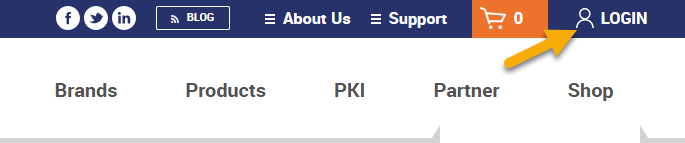
If you’re not already logged in, click Login on the top right.
You will be required to complete MFA before logging in. If you never setup authentication before, we’ll send a one-time passcode (OTP) to your account email address.
You may need to check junk/spam or adjust your email server settings to allow the OTP email from support@thesslstore.com.
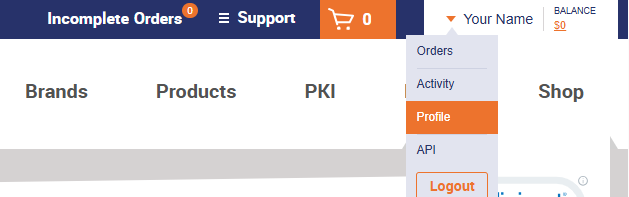
Once you have logged in, go to your account dashboard. Click your user name at the top, then click Profile.
2. Manage Settings
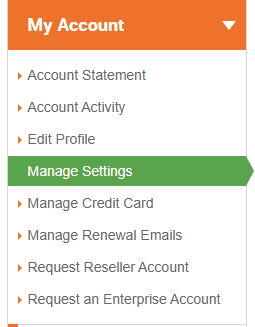
Click My Account on the left, then click Manage Settings.
3. Enable Multi-Factor Authentication.
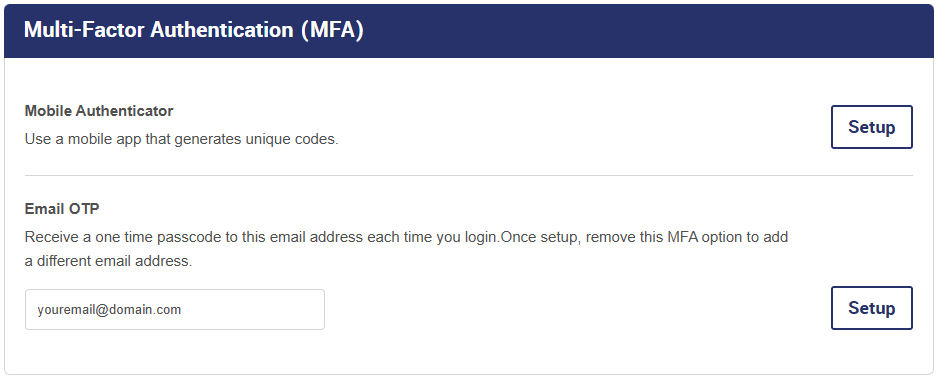
Scroll down to Multi-Factor Authentication (MFA).
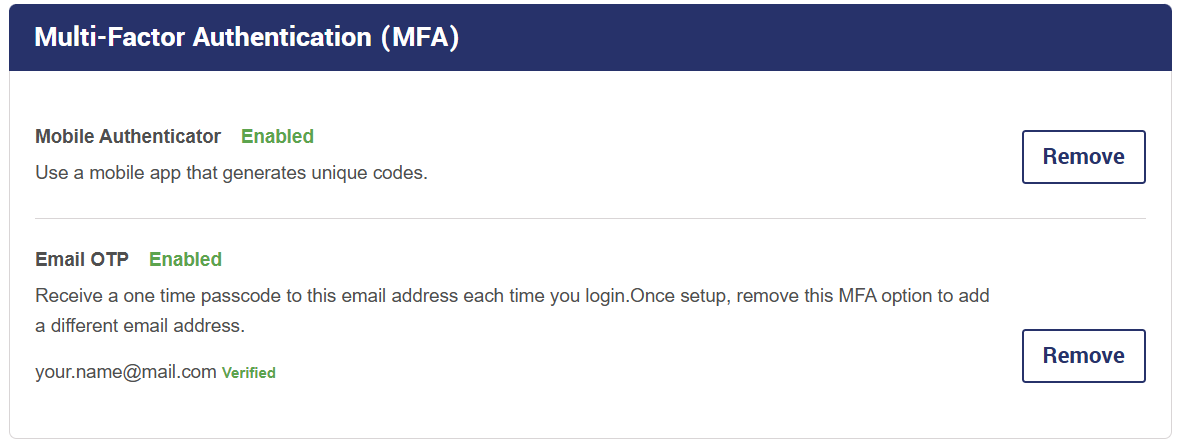
There are two authentication options – mobile app, or email. You can enable both, but will only use one at a time when you log in.
Setup Mobile Authenticator
Click the Setup button for the Mobile Authenticator option.
You will be prompted to scan a QR code or enter a setup key in your preferred authentication app. Follow the steps provided by your app to complete setup there.
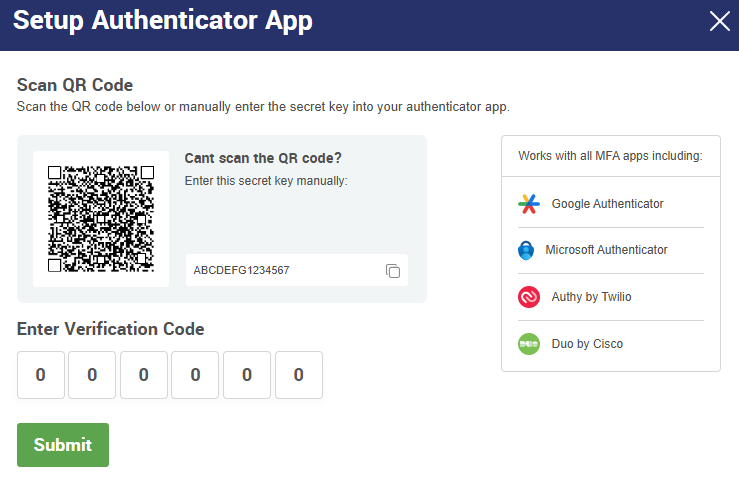
Once your app is generating a code for your SSL Store account, enter the code here and click submit to finish setup.
Email OTP
For email-based authentication, click Setup, then enter your preferred email address. It does not have to match your SSL Store account email.
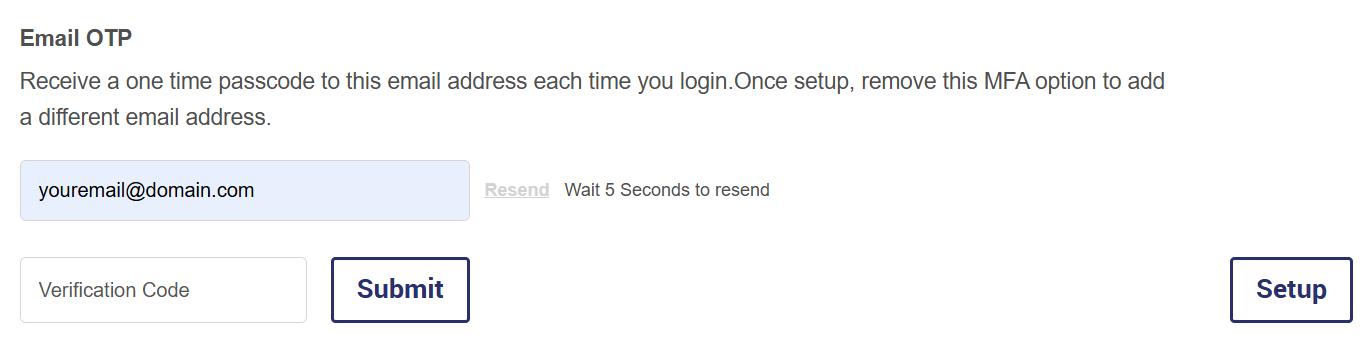
You will receive a verification code by email. Enter the code here and Submit to complete setup.
Text/SMS Authentication Deprecation
The SSL Store no longer supports multi-factor authentication by text/SMS. If you are currently using text-based authentication you may continue to do so, but if you remove your phone number it cannot be added again.
Login with Multi-Factor Authentication
You will be prompted to provide your authentication code whenever you log in to your SSL Store account. If you did not already setup an authenticator app or email address, we will send the OTP to your account email address.
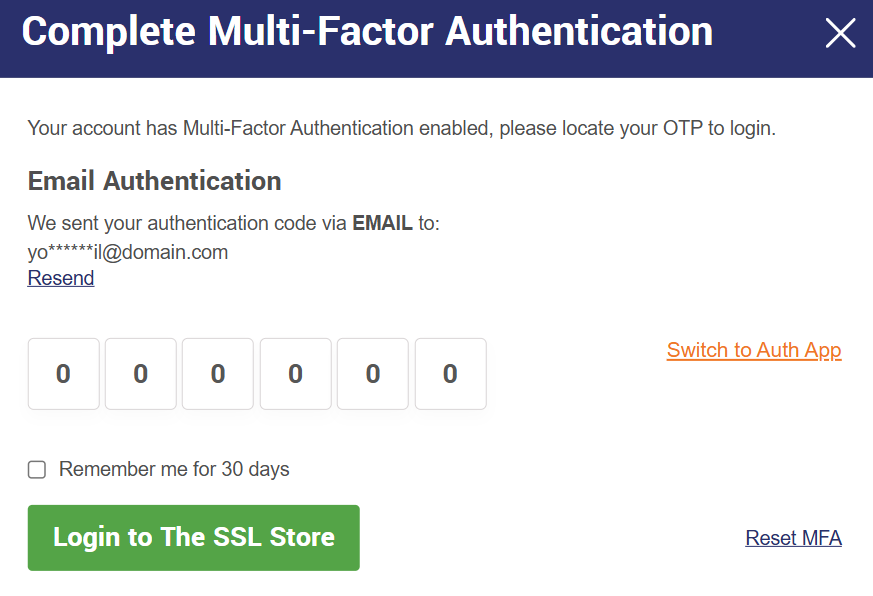
If you have both app and email MFA enabled, you will be prompted to enter the code from only one device. Click the Switch button if you want to use the other method instead.
Check “Remember me for 30 days” to disable the authentication requirement for a short time.
Not receiving the OTP email?
If you do not receive the OTP email and can’t find it in your spam folder, you can try requesting the email from our alternate address, support@sslhelpdesk.com.
You must have clicked the Resend button two times (30 second cooldown each time) for this option to become available. Click “Having trouble receiving the email?”

Then click Send OTP Email to request one from support@sslhelpdesk.com.
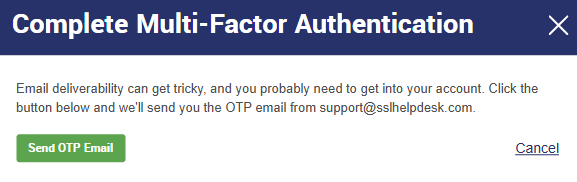
If you get this email, double-check that it came from the sslhelpdesk address before you input the verification code.
Once you’ve logged in, we recommend setting up your MFA with either an authenticator app or an email address that can definitely receive email from us.
Remove Multi-Factor Authentication
You cannot totally remove MFA from your account, but you can remove ONE authentication setting if you already have another device in place.
Remove MFA device while logged in
If you are logged in, go to Manage Settings and simply click the Remove button to remove the MFA authenticator or email address.
You must have the other MFA option enabled before you can remove one.
Remove MFA while logged out
If you are not able to login with MFA enabled, you can reset your device during the login process. You will be required to complete verification with your account email to complete this step.
Click Login and enter your account email and password. When prompted for your MFA code, click Reset MFA.
NOTE: You will not have the option to Reset MFA if you have not already set up your own custom email or authenticator device.
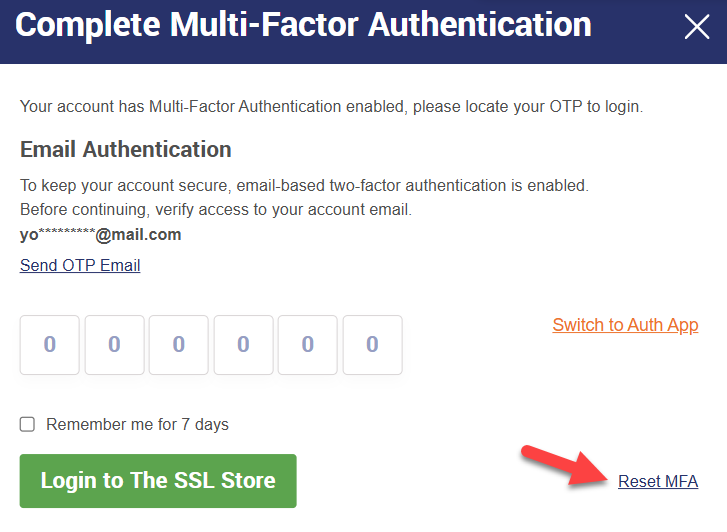
Next, click Send OTP via Email. Your SSL Store account email address will receive a verification code. The email may take a few minutes to arrive.

Enter the code that was emailed to you and click Reset MFA & Login.
IMPORTANT: If you are unable to login or reset your authentication settings due to issues with your account email, please open a ticket with our support team.