





Signature Verification: How to Verify a Digital Signature Online
Digital signatures add another layer of security to your online transactions and communications. But how can you know they’re real? We’ll walk you through how to verify a digital signature online in several popular systems and email clients
Digital signatures, unlike electronic signatures, can be cryptographically proven. This enables recipients to be certain that a real cryptographic key signed the data in question. This is great for verifying that you or your organization digitally signed something. But how can you verify the signature is legitimate?
We’ll look at how digital signatures are verified in general, and then move into how to verify these signatures on specific platforms:
- Adobe Acrobat for PDFs,
- Microsoft Office for files,
- Email clients (Apple Mail, Outlook, and Gmail),
- Software applications (on Windows devices).
Let’s hash it out.
Verify a Digital Signature the Easy Way: Using Built-In Verification
This is the most obvious method, and it’s the best place to start in 99% of cases. If a signature is invalidated, many software applications and systems will tell you as much up front. There will be warning signs attesting to the fact that there’s something wrong.
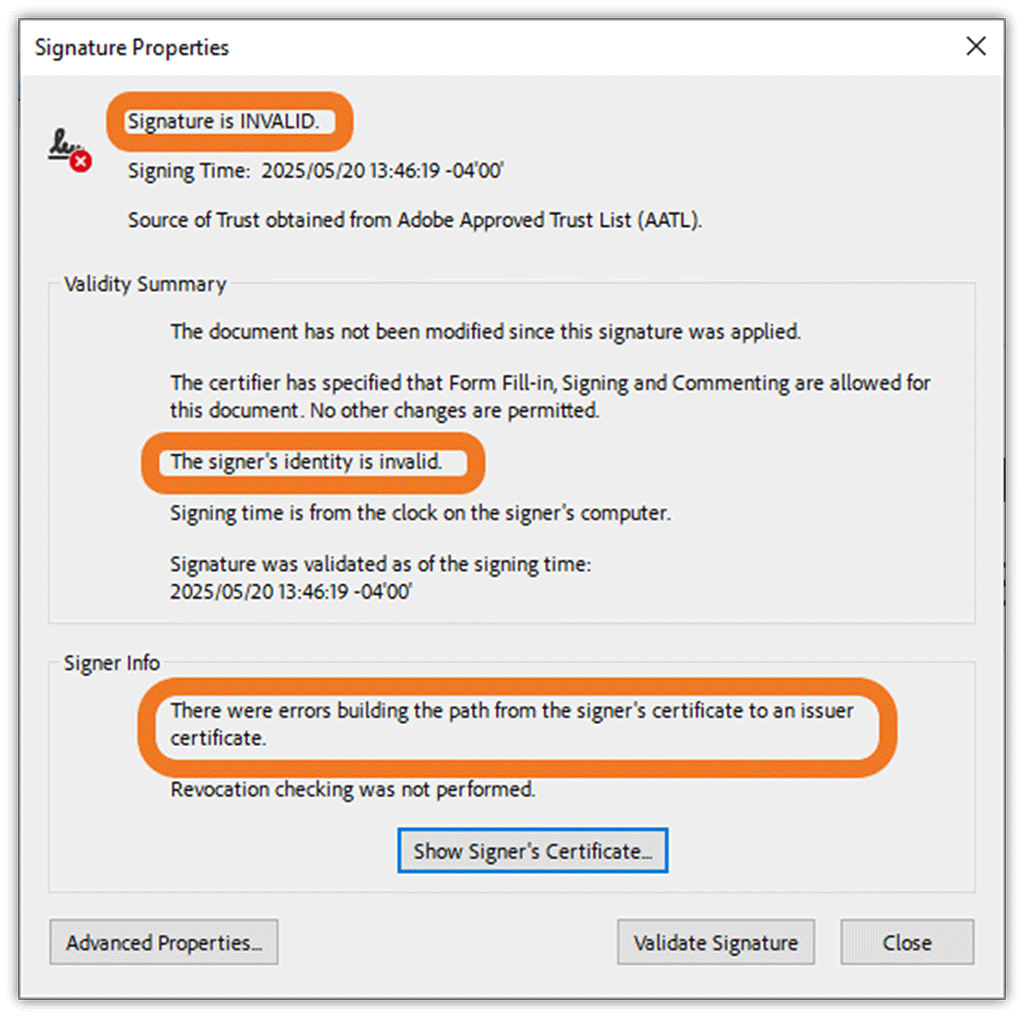
For example, here’s what it looks like in Adobe Acrobat when a signature isn’t valid for one reason or another:
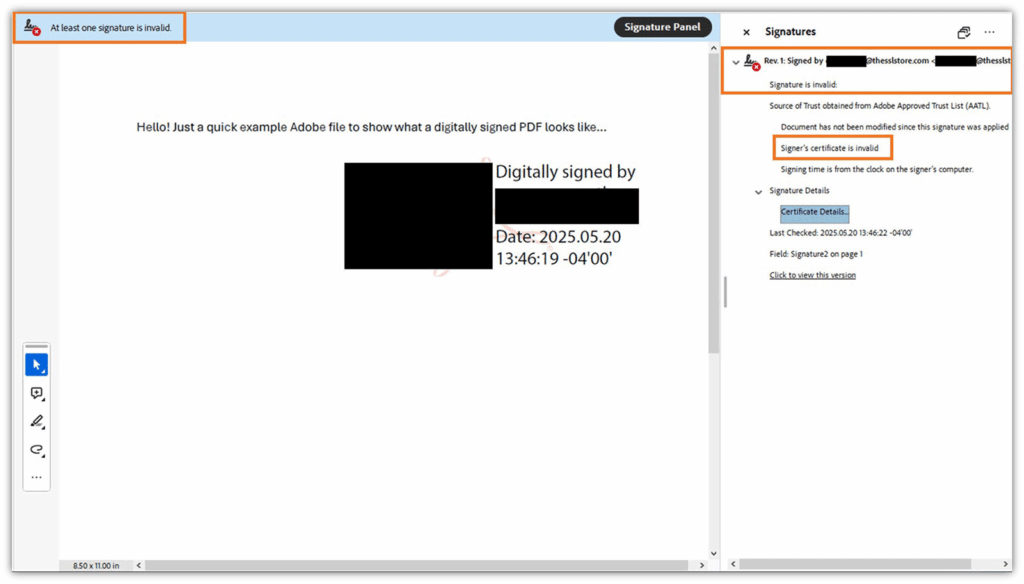
It’s the digital file equivalent of an illuminated neon sign or a flashing red light. It’s telling you not to proceed because of an inherent danger.
Let’s take a look at how to verify digital signatures for PDFs, Microsoft Office files, software apps for Windows systems, and several popular email clients.
How to Verify a Digital Signature in a PDF: Look for the Signature in Adobe Acrobat
Digital signatures provide an invaluable service to companies and customers who need to remotely sign important documents in a way that can be authenticated. Rather than asking your employees to scrawl their John Hancock using a computer mouse or digital stylus pen, which can be faked, you can instead use public key cryptography to add a layer of authenticity to every digital transaction.
So, how can you or a customer verify that a digital signature is valid?
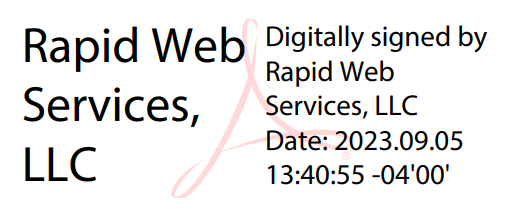
- Open the PDF file in Adobe Acrobat. If the file has been signed, you’ll see a stamp that looks like the example above.
- Right-click on the digital signature to bring up a drop-down menu. Here, you’ll find Validate Signature listed as the top option. This Signature Validation Status allows you to verify whether the signature is valid, if the document has been tampered with, and whether the signer’s ID is valid.
Click Signature Properties to view additional information about the document and signature itself. This includes immutable timestamp data and informs users whether the certifier allows changes to be made to the document.
How to Verify an Email Digital Signature: Look for a Ribbon or “Signed” Message
Apple Mail
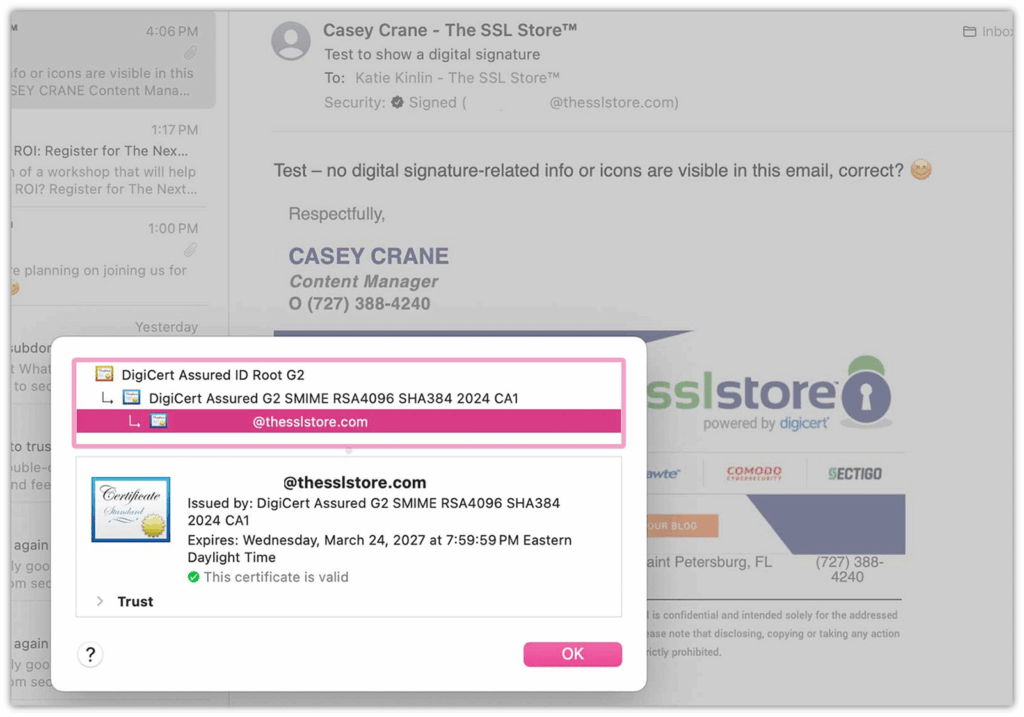
To verify a digital signature online in Apple’s email client application, you’ll want to click on the Security (checkmark) Signed (email address), as shown below:

This approach allows you to pull up the certificate trust chain details and the specific user’s S/MIME certificate information as well. The handy little green checkmark tells you that the certificate is valid (as shown in the screenshot below). It provides contextual info about the certificate provider that issued the certificate, how long it’s valid, and other useful details.
Microsoft Outlook
It’s easy to verify the digital signature of emails in Outlook:
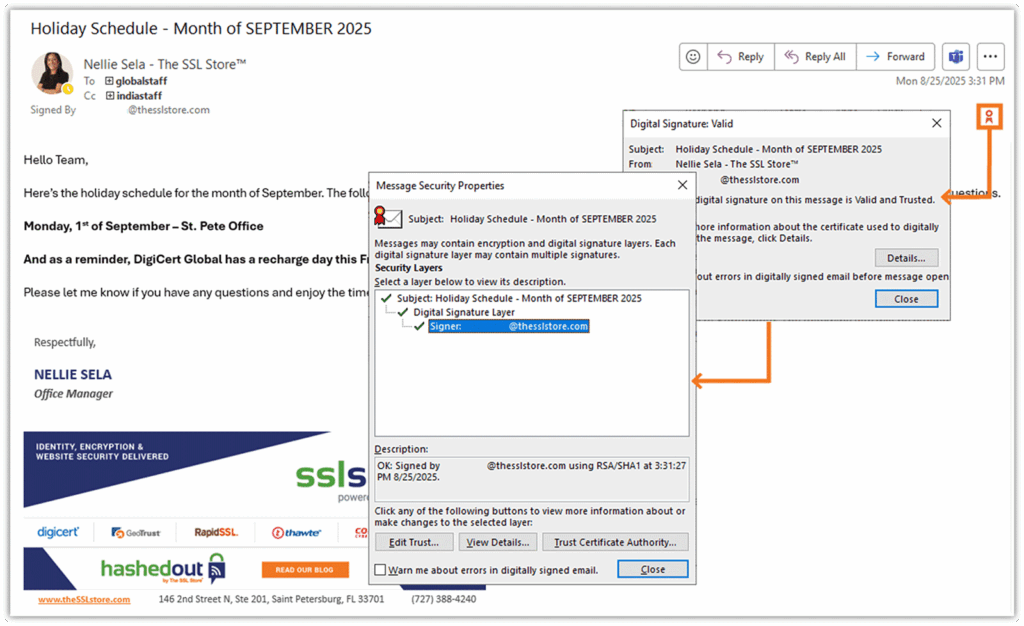
- Look for the digital signature ribbon icon. Compare it to the sender’s email address in the sender field. Double-click on the name to display the email address rather than the display name.
- Check the email address listed in the “signed by” or “Security” info. Compare this to the email address information listed in the email’s sender field to see whether they match.
- Check the signature and signing certificate details. Verify the information contained within the certificate, along with the digital signature details (e.g., the email address associated with the certificate, which hashing algorithm(s) were used, and any timestamp details).
Here’s a quick look at how some of this information displays when using Microsoft Office 365.
Gmail
Gmail is another email client that supports the use of PKI digital certificates to authenticate senders to recipients. To verify whether a digital signature is valid in Gmail, simply look for the blue ribbon icon and then click the little dropdown arrow next to it. This will display the sender’s email address, along with the signature’s date and time:
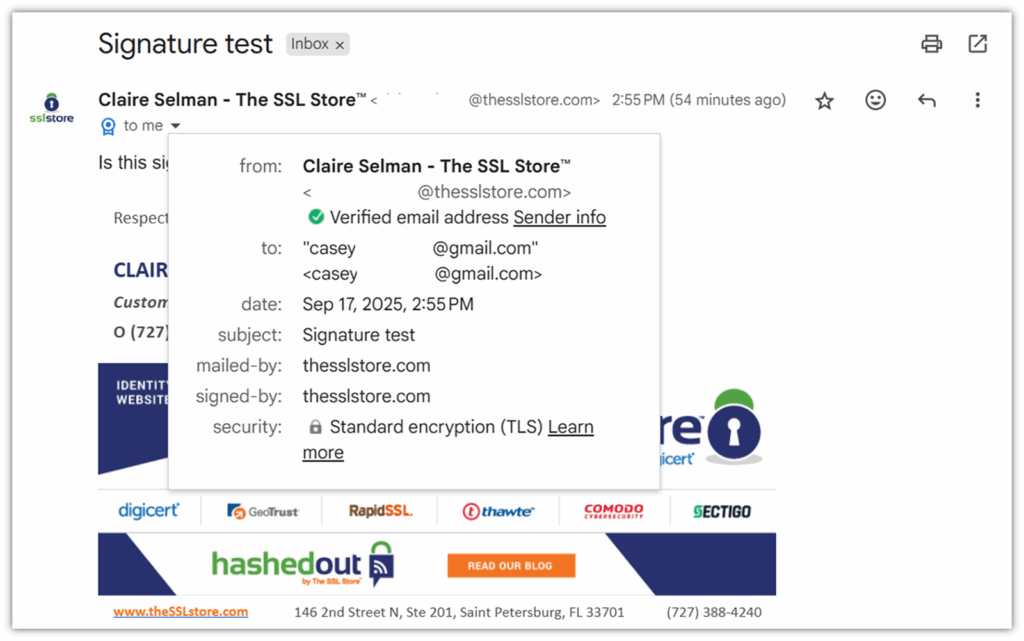
You can click Sender Info to view
- additional information about the certificate issuer,
- confirm the sender’s email address, and
- view their digital certificate and the PKI hierarchy it ties back to.
Running Into Issues and Seeing an Error?
We’ve got the fix for the error “The signature uses an unsupported algorithm. The digital signature is not valid.”
How to Verify a Digital Signature for Windows Apps: Look for a Verified Publisher’s Signature
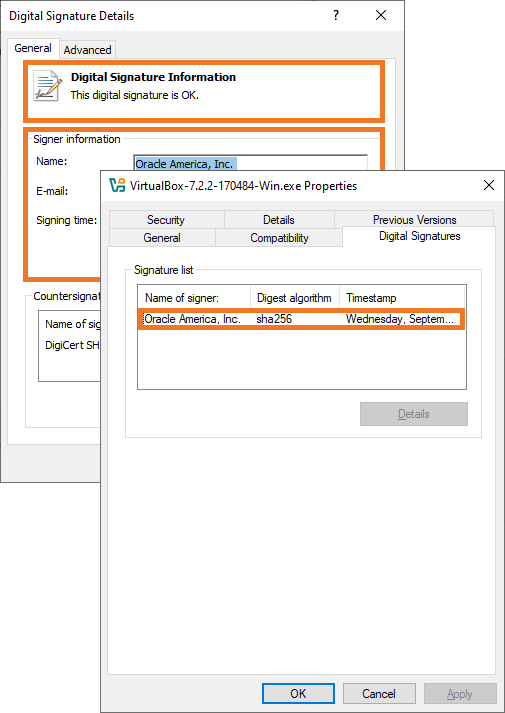
So, how can you check a software app’s digital signature? In Windows, you can do this using Windows Command Prompt:
- Locate the file you wish to check on your device.
- Right-click on the file and select Properties from the drop-down menu.
- In the file’s Properties window, select the Digital Signatures tab at the top.
- Where it says Signature List, select the entity listed in the Name of Signer column and click Details to view the signer’s information.
How to Verify a Digital Signature in Word: Inspect the Signatures Pane
To verify a digital signature in a Microsoft Word document, you’ll want to open the signed doc file and look for the signature pane on the right side of the screen (as shown below).
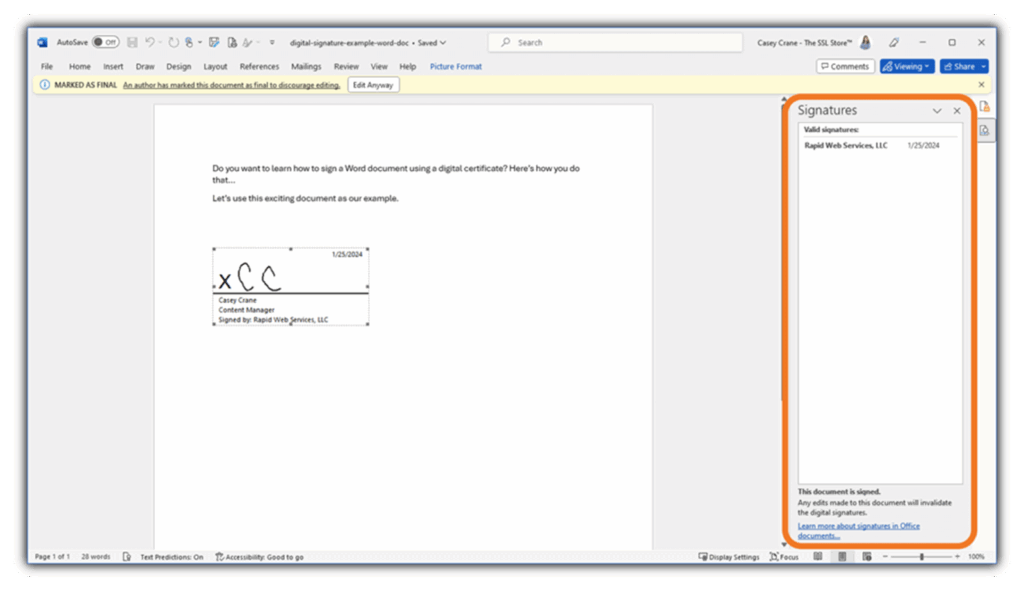
If you don’t see this pane, then navigate to File menu and select Info > Signed Document. This will display the signature panel on the right side, as shown above. Here, you can engage with and inspect the signature for additional information about the signer and when the signature was added.
If you don’t see the Signed Document option on the Info screen, then it likely means:
- your file isn’t digitally signed,
- a non-timestamped signature has expired, or
- the file has been altered since it was signed.
Taking It a Step Further: Manually Verifying Digital Signatures
In most cases, you’ll want to verify the digital signature using the built-in functionality in the software you’re using. But for extra security, there are some manual checks that you can do…
Verify the Signing Certificate’s Validity Period
Every PKI certificate comes with issuance and expiration dates (known as the validity period). These dates indicate how long a certificate is intended to be valid for (barring any unforeseen revocations). Anything signed prior to the issuance date can’t be trusted, nor can anything that was signed after the expiration date (if the signature isn’t timestamped).
See Whether the Signer’s Name or Company Matches the Certificate Info
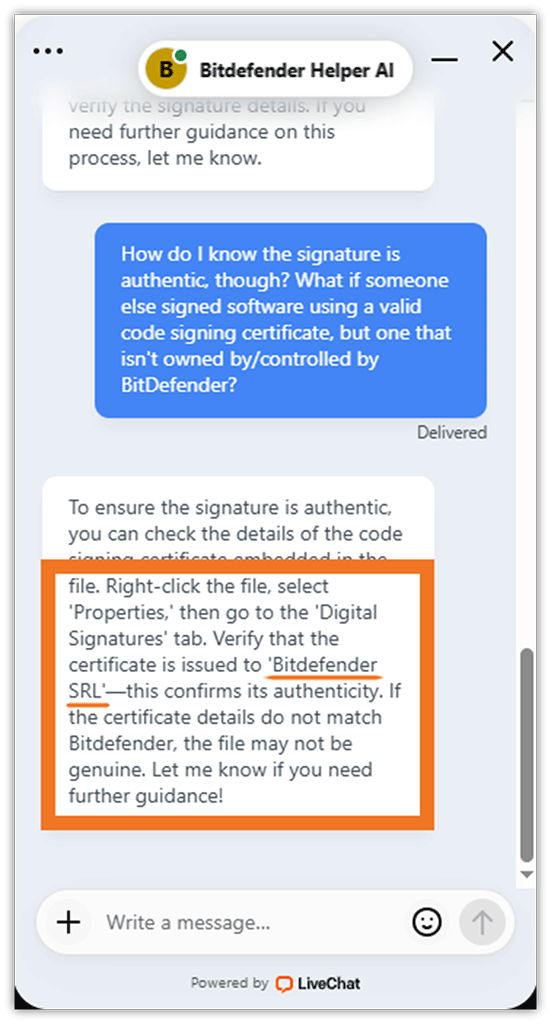
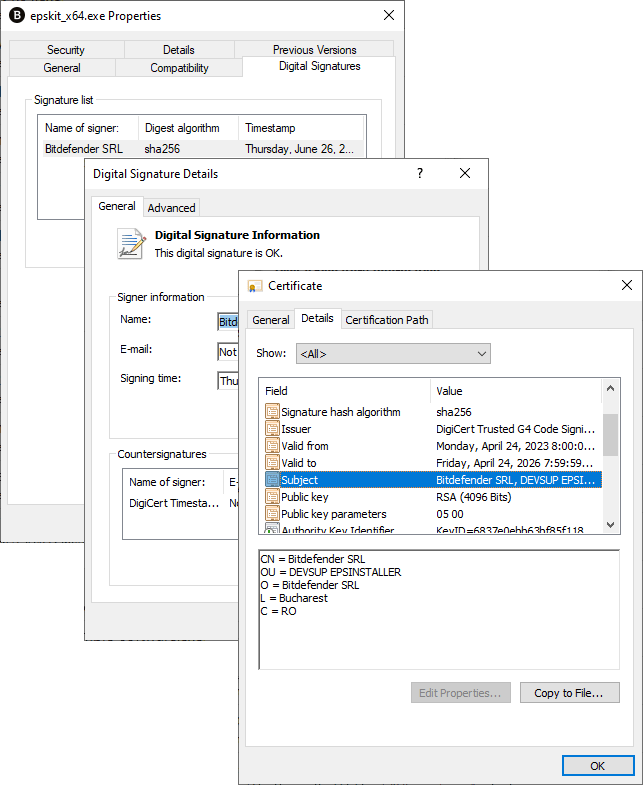
If someone manages to get their hands on a valid certificate and its signing key, then they can use it to their advantage. So, something to always check is whether the certificate subject’s name matches the organization that publishes the software.
Let’s imagine that you’re attempting to install a popular software app (say, BitDefender). According to BitDefender’s Support page Helper AI bot, the company’s software should be signed by “BitDefender SRL.” (This is also supported by the company’s Data Processing Agreement, which lists it as “BitDefender SRL” as well.)
When you download it from a third-party site and check the software’s digital signatures, if it says that the file was signed by someone else (in this case, an entity other than BitDefender SRL), then it’s a big red flag telling you not to install the software!
Check the Certificate Policy’s Object ID
This method is geared more for our technical readers: check the certificate’s object identifier (OID) code. This string of more than a dozen numbers separated by periods represents specific objects and policies within PKI. This identifies what type of certificate created the signature, which helps to determine its validity.
For example, DigiCert publishes a list of OIDs on GitHub that can be used to verify the certificate usage or extended key usages of digital certificates. There are also third-party public databases, such as the OID Repository.
For example, the OID for a certificate we use as one of our examples in this article is 2.16.840.1.114412.3.21. This specific OID number represents an Adobe Signing Certificate from DigiCert.
- 2 = Joint-ISO-CCITT (reference to a standards body)
- 16 = country
- 840 = USA
- 1 = U.S. company
- 114412 = DigiCert
Okay, so what does the use of OIDs look like from a practical perspective? No one wants to sit here, shuffling through certificate OID numbers to figure out whether a document or piece of software can be trusted, or that the certificate used to sign it was valid at the time.
Bonus: Compare the Cryptographic Hash Values to Ensure Software Integrity
While this isn’t directly a “digital signature validation” method, another great way to know whether a software application has been tampered with is to inspect the hash value/digest of the app or code in question.
The hash digest is what’s created when you apply a cryptographic hash function to your data input. You sign this hash value to generate the digital signature for your software applications, software bills of materials (SBOMs), and other types of code.
NOTE: You can’t create a digital signature without a hash. However, it’s important to also note that while all digital signatures are built upon a hash value, not all hash values are tied to digital signatures.
To verify the software app’s integrity, a user can use your public key to decrypt the signature and then proceed with calculating the hash value.
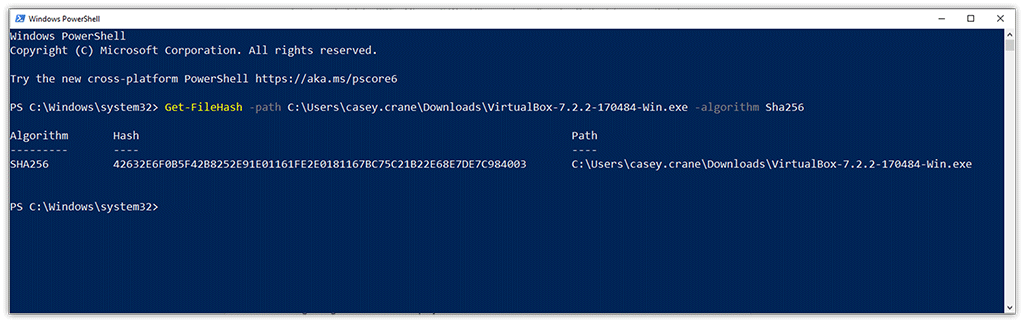
They compare this to the original hash value you should provide to your software users.

- If the calculated and publisher-provided values match, you’re good to go and can proceed with whatever task you set out to complete.
- If they don’t match, then it’s a major red flag that warns users not to proceed further. This gives users a way to check whether the signing key matches the organization or publisher.
What Invalidates a Digital Signature So That It’s No Longer Trusted?
There are a few reasons why a digital signature might display as invalid:
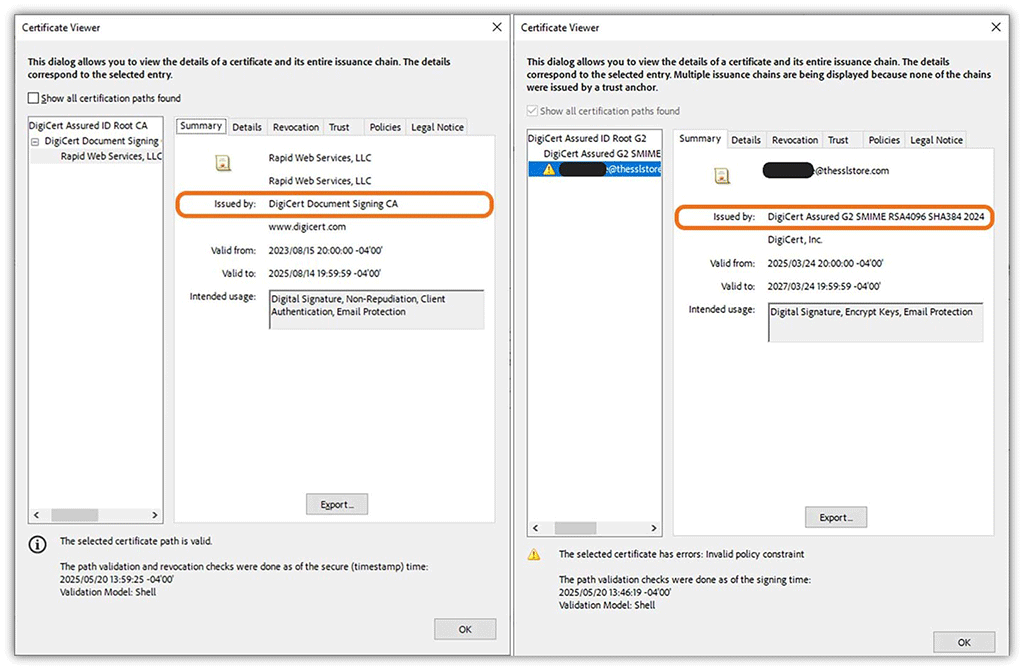
- The signer’s digital identity is invalid. This could be because the signer signed with a signature that was issued by a private CA, which isn’t publicly trusted.
- The document, file, email, or software app’s data has been modified since it was digitally signed. We get it — not all changes to software are intentional or necessarily malicious. But if a tiny change is made to a digitally signed document or file (e.g., adding or removing a single period [“.”] from the input data), intentionally or otherwise, it will result in an entirely different hash value. This will invalidate the file’s digital signature.
The signer used the wrong type of digital certificate. Yup, accidents happen. If you use, say, select an email signing certificate when trying to sign a PDF file, then it’ll result in an error.
- The certificate was revoked after the signature was created. Digital certificates are revoked due to private key compromise concerns or something else that results in the certificate (and its signing key) being invalidated.
Digging Deeper Into Online Signature Verification Methods
If you’re looking for additional information on what digital signatures are, how they work, and other useful information (such as how-to articles and quick fixes), be sure to check out our related resources.
Related Resources
- What Is a Digital Signature & How Does It Help Your Organization?
- Digital Signature vs Digital Certificate: A Quick Guide
- How to Digitally Sign a PDF in Adobe Acrobat (A Step-By-Step Guide)
- How to Sign a Word Document Using a Digital Signature Certificate
- ‘At Least One Signature Is Invalid’: How to Fix an Invalid Signature in a PDF (Adobe)
- How to Fix ‘The Signature Uses an Unsupported Algorithm. The Digital Signature Is Not Valid’
Real World Implications for Checking Digital Signature Validity
There are some severe implications for compromised digital signatures. We’re talking everything from data breaches and financial costs to loss of trust and reputational damages.
As an example, let’s consider Codecov’s situation back in 2021. One or more cybercriminals exploited a weakness in the organization’s Docker Image creation process that gave them the credentials necessary to modify Codecov’s Bash Uploader script. They used it to deliver “a malicious payload to all Codecov users utilizing the Bash uploader, The Codecov GitHub Action, The Codecov CircleCI Orb, and the Codecov Bitrise Step[.]”
This means that an unknown number of users downloaded and installed compromised software for several months, blissfully unaware that their systems were at risk.
The altered script went unnoticed for quite some time until one astute customer manually checked its hash value. He or she noticed a discrepancy when comparing the file’s shasum value that was in the downloaded Bash Uploader to the hash value listed on GitHub.
Whoops.
Thankfully for CodeCov, the individual who discovered the incongruency quickly alerted Codecov, which investigated the incident. But imagine how much worse the situation could have been had the company not published its SHASUM value…
This is why we always encourage our software publisher customers and readers to publish their hash digests. Digital signatures add another much-needed layer of security to your organization and its digital assets and communications. This addition of authenticity and data integrity is crucial to the health and security of organizations and consumers globally.





5 Ways to Determine if a Website is Fake, Fraudulent, or a Scam – 2018
in Hashing Out Cyber SecurityHow to Fix ‘ERR_SSL_PROTOCOL_ERROR’ on Google Chrome
in Everything EncryptionRe-Hashed: How to Fix SSL Connection Errors on Android Phones
in Everything EncryptionCloud Security: 5 Serious Emerging Cloud Computing Threats to Avoid
in ssl certificatesThis is what happens when your SSL certificate expires
in Everything EncryptionRe-Hashed: Troubleshoot Firefox’s “Performing TLS Handshake” Message
in Hashing Out Cyber SecurityReport it Right: AMCA got hacked – Not Quest and LabCorp
in Hashing Out Cyber SecurityRe-Hashed: How to clear HSTS settings in Chrome and Firefox
in Everything EncryptionRe-Hashed: The Difference Between SHA-1, SHA-2 and SHA-256 Hash Algorithms
in Everything EncryptionThe Difference Between Root Certificates and Intermediate Certificates
in Everything EncryptionThe difference between Encryption, Hashing and Salting
in Everything EncryptionRe-Hashed: How To Disable Firefox Insecure Password Warnings
in Hashing Out Cyber SecurityCipher Suites: Ciphers, Algorithms and Negotiating Security Settings
in Everything EncryptionThe Ultimate Hacker Movies List for December 2020
in Hashing Out Cyber Security Monthly DigestAnatomy of a Scam: Work from home for Amazon
in Hashing Out Cyber SecurityThe Top 9 Cyber Security Threats That Will Ruin Your Day
in Hashing Out Cyber SecurityHow strong is 256-bit Encryption?
in Everything EncryptionRe-Hashed: How to Trust Manually Installed Root Certificates in iOS 10.3
in Everything EncryptionHow to View SSL Certificate Details in Chrome 56
in Industry LowdownA Call To Let’s Encrypt: Stop Issuing “PayPal” Certificates
in Industry Lowdown